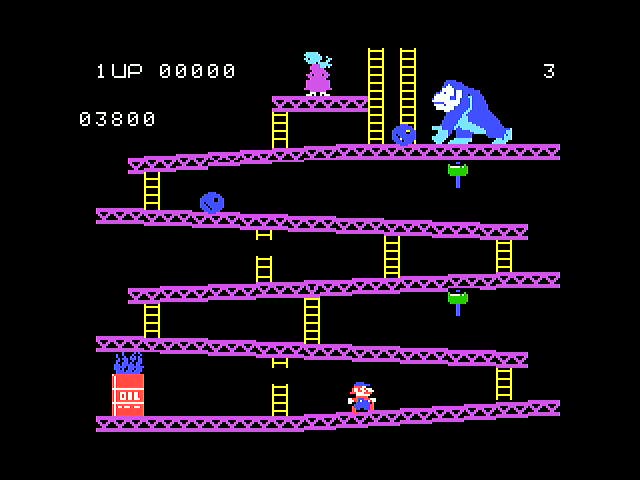
The ColecoJam emulator is a ColecoVision emulator that runs on the Adafruit Fruit Jam. The ColecoVision was a second-generation home video game console released by Coleco Industries in 1982. It became one of the most successful competitors to the Atari 2600 and is remembered for bringing surprisingly arcade-like graphics and gameplay into the home at that time. The ColecoJam brings back that 1980s nostalgia in a modern format. Also, the code is open source, which means it is free to download and modify.
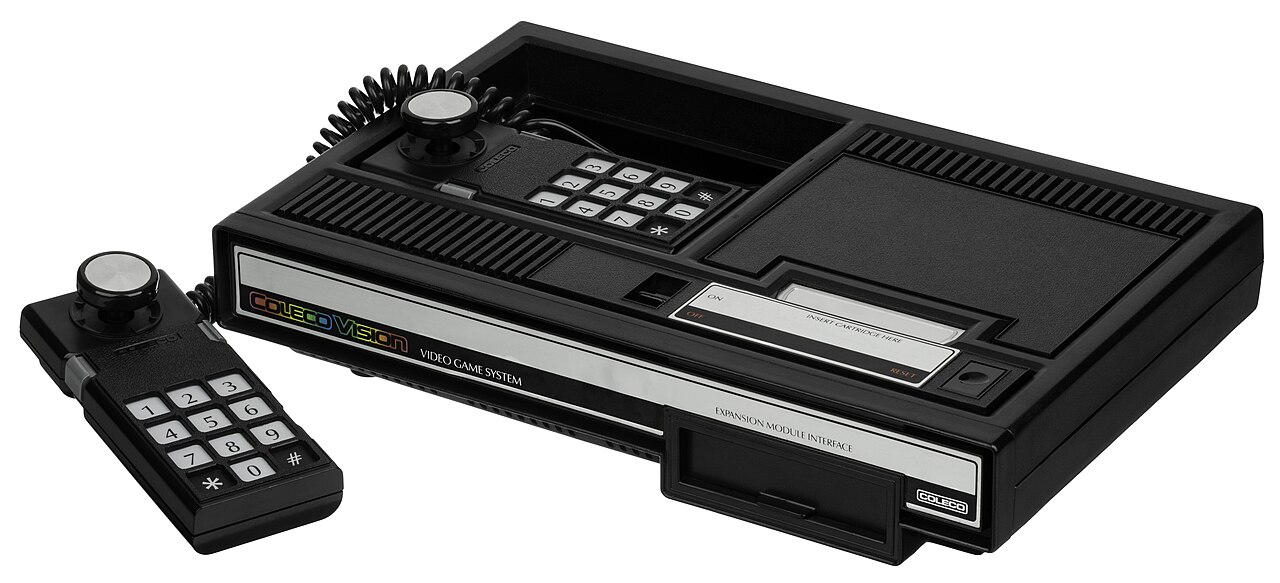
ColecoJam Emulator Features
Features of the emulator include:
- Select game ROMs stored on an SD card from a menu to play
- Sound included in HDMI, no external speaker needed
- Support for Super Graphics Module (SGM) and MegaCart games
- Support for EEPROM enabled games for saving game data like high scores
- Support for several USB game controllers as well as a keyboard
- Support for playing cartridge games using the optional game cartridge adapter
- Back up your cartridge games to an SD card with the optional game cartridge adapter
Hardware Setup
The ColecoJam emulator runs on an Adafruit’s Fruit Jam. In addition to the Fruit Jam, you will need the following items:
- MicroSD card (for storing game ROMs and the Colecovision BIOS file)
- 1 or 2 USB game controllers (https://www.adafruit.com/product/6285) or keyboard
- USB C cable to connect the Fruit Jam to your computer
- HDMI cable and video monitor with audio support (monitor must support 640×480 resolution)
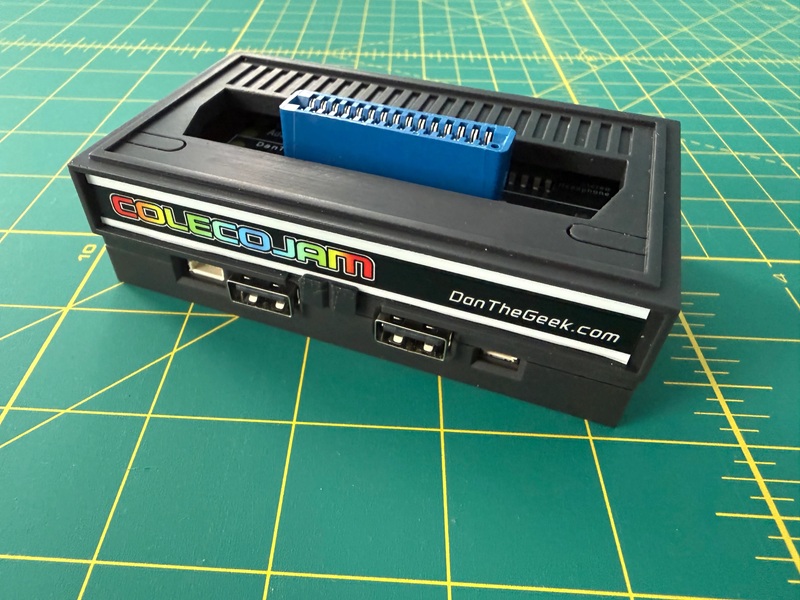
You will also need a copy of the Colecovision BIOS (not included) and at least one game cartridge ROM (also not included). Optionally, you can add a 3D printed case and the Colecovision game cartridge reader, which allows you to insert a Colecovision game cartridge directly into the Fruit Jam and play the game directly from the inserted cartridge, just like the original Colecovision!
You can use the game cartridge adapter to create your own game ROMS for backup purposes. There are sources on the internet for backups of game ROMs. One source is https://cvaddict.com/article.php?articleid=15, which currently includes over 300 game ROMs.
Note: The 3D printed case and game cartridge adapter are still under development and will be available soon.
Micro SD Card Setup
Format the Micro SD card as FAT32 and create the following file structure:
/coleco/
    COLECO.BIN          <- the 8 KB ColecoVision BIOS (you must supply this)
    Donkey Kong.ROM
    Cosmic Avenger.ROM
    ...
All files will be stored under the “/coleco” folder. Only files ending in .ROM (case-insensitive) appear in the game browser. The BIOS is a copyrighted Coleco ROM image; it is not included here and you need to dump it from your own console or otherwise obtain it lawfully. The same goes for game ROMs. You can use the Colecovision Cartridge Reader for the Fruit Jam to create Game ROMs from your own cartridges or run game cartridges directly from the cartridge reader.
Install the ColecoJam Image
Download the latest colecojam.uf2 file from the GitHub repository at: https://github.com/cogliano/Adafruit_ColecoJam/releases/latest
To install the uf2 file, press and hold button 1,then press the “Reset” button and release. You should see a mounted drive appear on your computer. Copy the uf2 file into this folder, and the Fruit Jam should reboot with the ColecoJam image. Use this same procedure when updates are made to the emulator.
Controller Buttons
In addition to the joystick and side action buttons, the Colecovision controllers included a numeric keypad, complete with “*” and “#” keys. The USB controllers do not contain a numeric keypad, but the number have been mapped using one or more button presses. For example, many games use “1” to select one player mode. This button is mapped to the “A” button on the controller.
USB gamepads plug into the two USB-A ports. Player 1 is the first pad enumerated, player 2 the second. Mapping follows the Adafruit SNES-layout controller:
| Gamepad | ColecoVision |
|---|---|
| D-pad | Joystick |
| Left shoulder | Left side action button |
| Right shoulder | Right side action button |
| Select | Keypad * |
| Start | Keypad # |
| A / B / X / Y | Keypad 1 / 2 / 3 / 4 |
| Select + A / B / X / Y | Keypad 5 / 6 / 7 / 8 |
| Start + A / B | Keypad 9 / 0 |
Combinations take priority: holding Select and pressing A sends 5, not * then 1. Select or Start on its own is what produces * or #.
Playing a Game
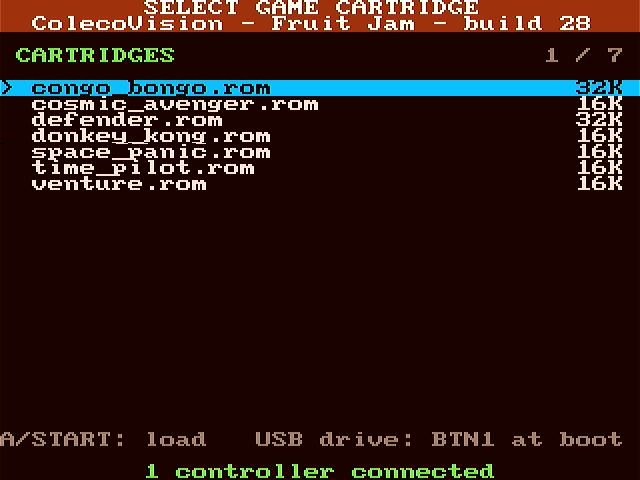
Once you have your SD card with the appropriate files inserted into the Fruit Jam and all your cables loaded, you should see a game cartridge selection screen. Select the game you want to play by moving the joy stick up or down and selecting the game with the “A” button. The game should load and you can now play your Colecovision game!
EEPROM Enabled Games
A few games support EEPROM for saving data and high scores. ColecoJam supports this depending on which way you are playing the game:
- If using the emulator, The EEPROM data is saved to the ColecoJam’s memory. Pressing button 1 will save the EEPROM data into a file with the same name as the game ROM with a “.sav” extension. This file will be loaded the next time the game is selected. Note: Not pressing button 1 before rebooting or turning off the ColecoJam will not save the EEPROM data.
- If using the game cartridge adapter, data is saved directly to the EEPROM on the cartridge itself.
Note that not all games have EEPROM support. No official Colecovision cartridges released in the early 1980s support it. You will find it primarily in SGM games. Check your game for details on support.
Bonus Features
Here are a couple of bonus features included with ColecoJam:
- When pressing and holding button 1 down on the Fruit Jam while booting the Fruit Jam, the SD card will be visible to your computer as a USB drive. You can now copy and delete games from your SD card without having to remove it from the Fruit Jam. Use the eject option for the SD card drive when done or restart the Fruit Jam to continue to the cartridge select screen.
- When pressing and holding button 1 down on the Fruit Jam while booting the Fruit Jam with a game cartridge inserted, a cartridge option menu appears, allowing the inserted cartridge to be saved to the SD card.
- Pressing button 1 on the Fruit Jam during game play will immediately return to the cartridge selection screen. No reboot is necessary.
- When in the cartridge selection or cartridge option screen, a screen saver will start if there is no input activity after 2 minutes.